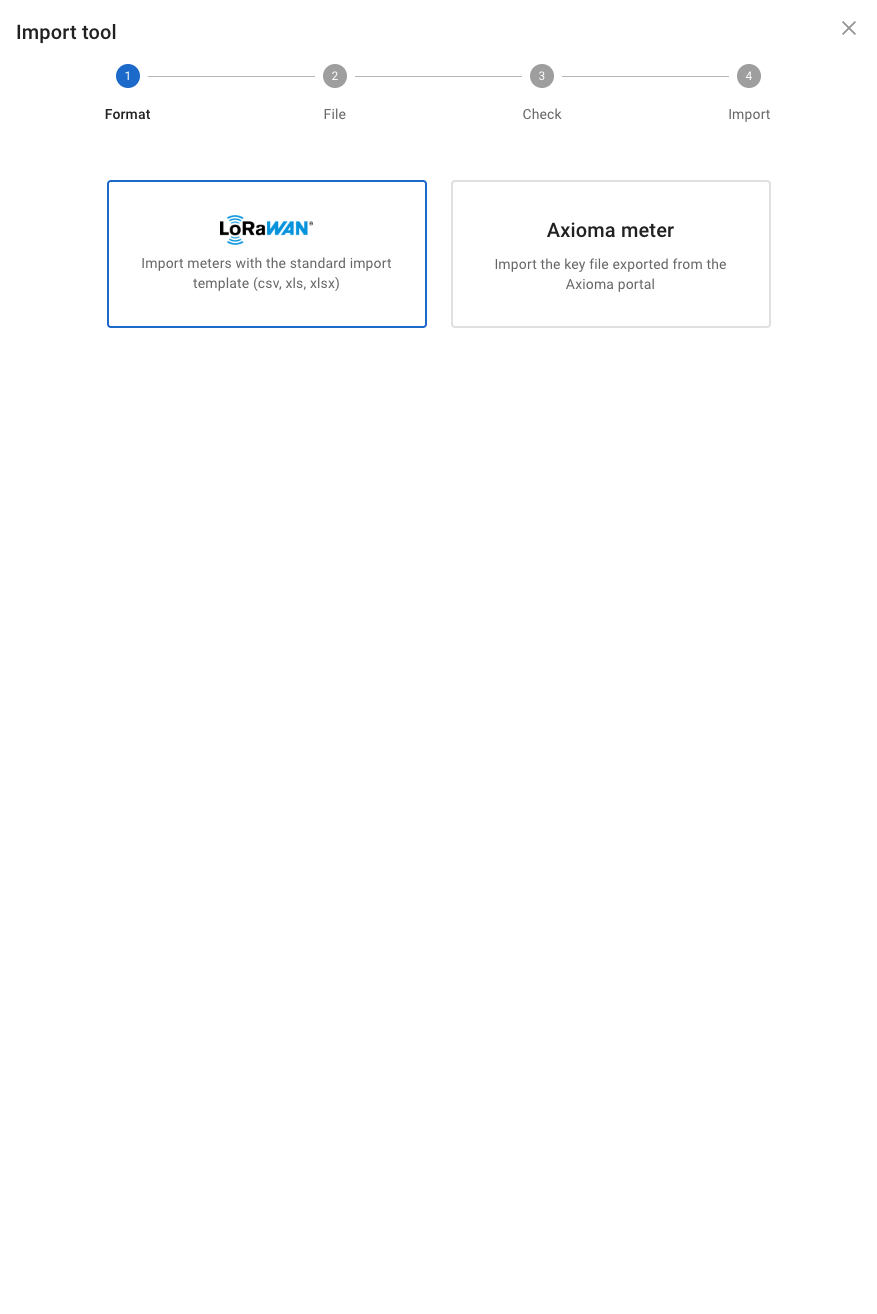
Step 1 / 4
Choose the LoRaWAN format
Select the LoRaWAN card to use the standard import template. This guide covers LoRaWAN imports; the Axioma meter card is a separate import format.

Import water meters into Laqua. Choose the import documentation for your file format, then follow the steps for your customer organization.
Step 1 / 4
Select the LoRaWAN card to use the standard import template. This guide covers LoRaWAN imports; the Axioma meter card is a separate import format.
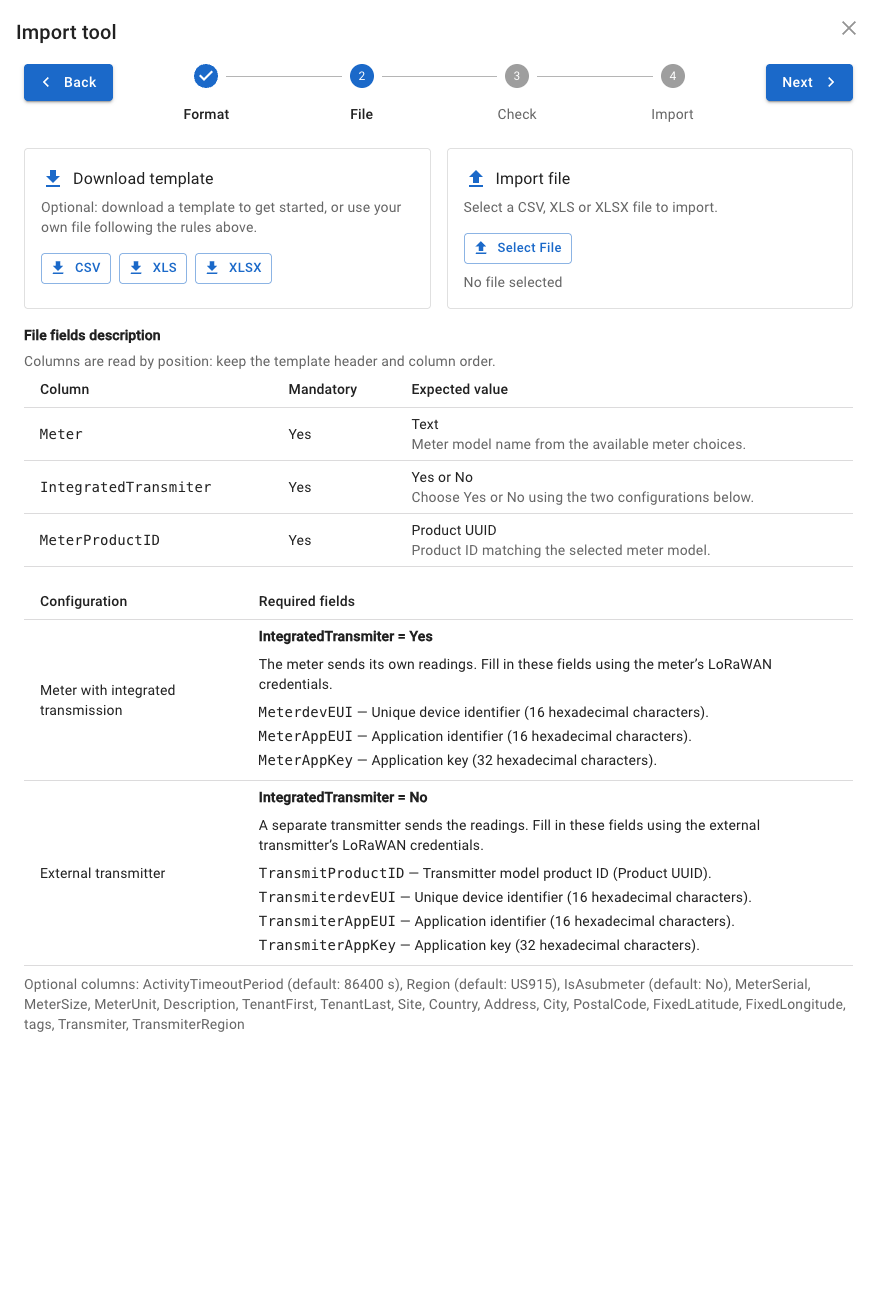
Step 2 / 4
Download a template and prepare your file using the field descriptions shown on screen. Select your file, then click Next to check it.
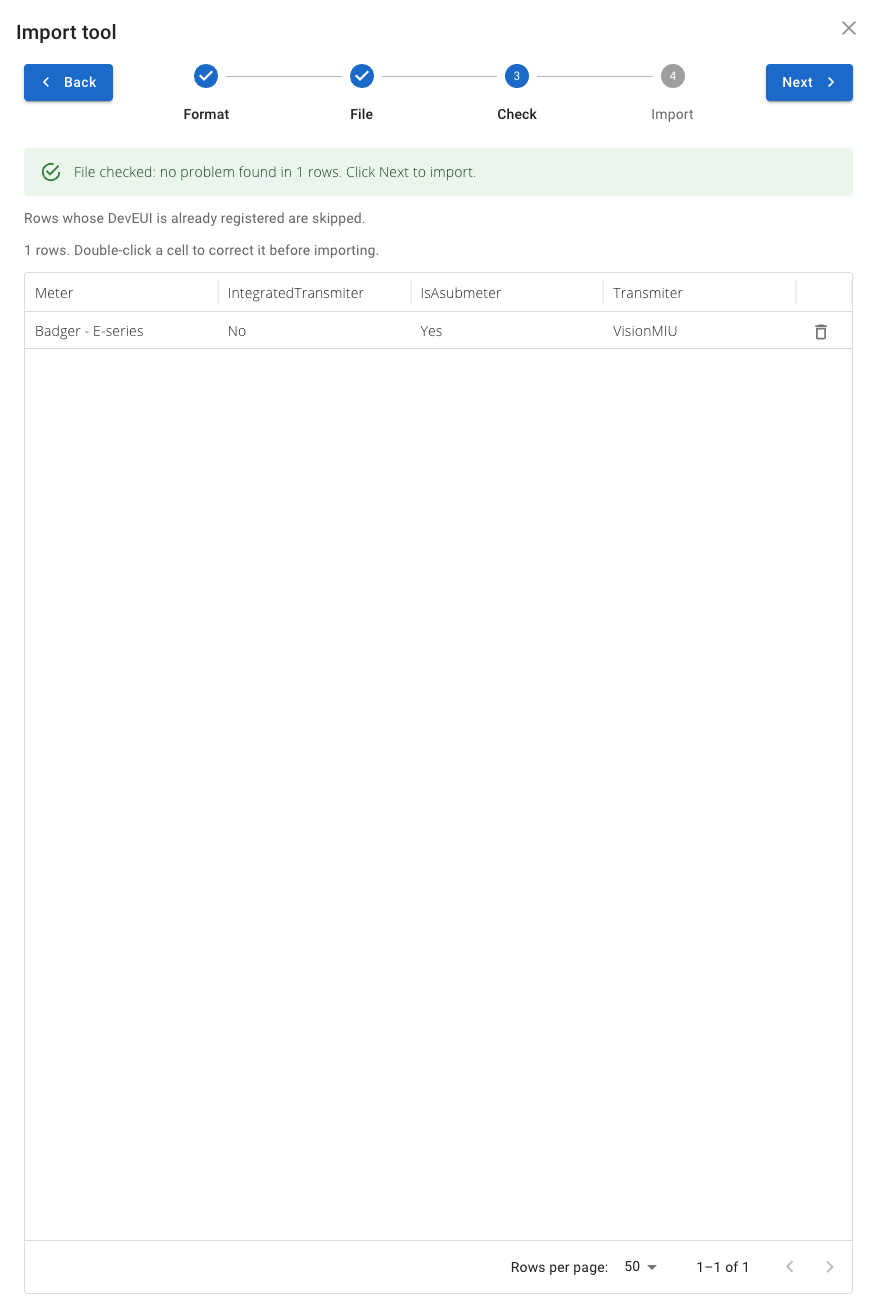
Step 3 / 4
Review the validation message and the rows in the table. Double-click a cell to correct it before importing, or use the trash icon to remove a row. Rows whose DevEUI is already registered are skipped. The screenshot shows one valid row; check the result for your own file, then click Next when it is ready.
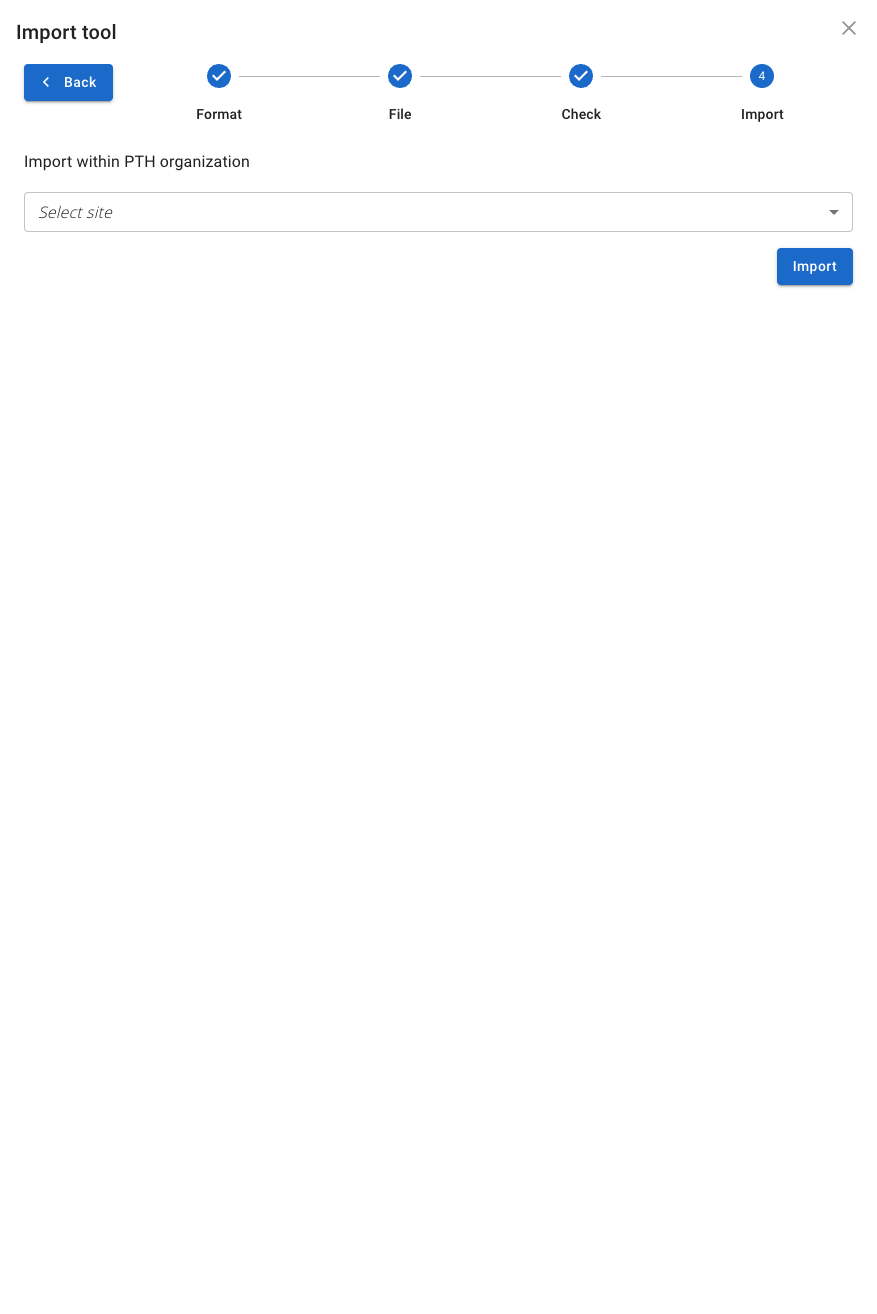
Step 4 / 4
Confirm the organization displayed above the site selector. Choose the destination site from Select site, then click Import. Wait for the application to report the result and check the meters in the destination site. This screenshot shows the final action before submission, not an import success confirmation.
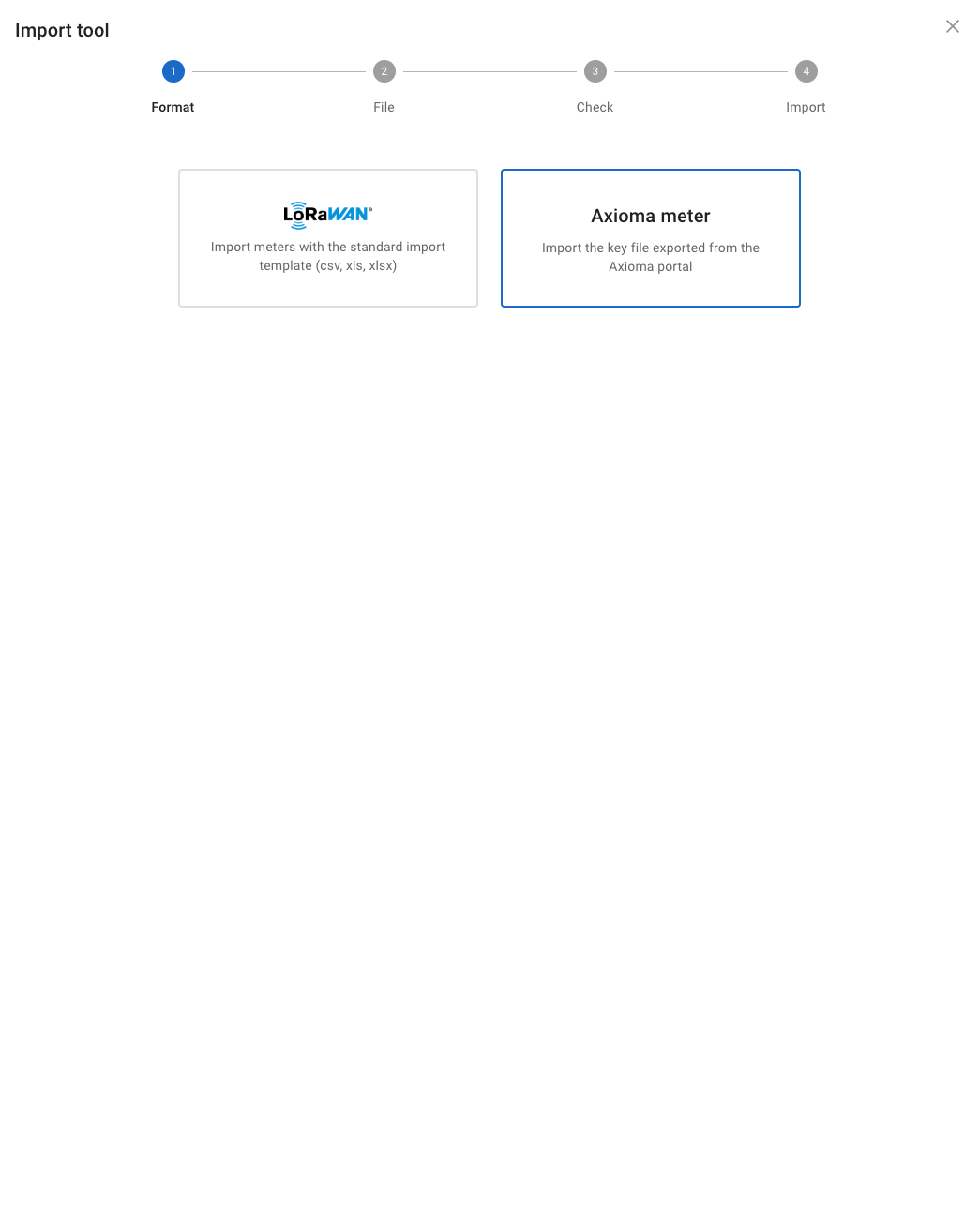
Step 1 / 4
In the Import tool, select the Axioma meter card.
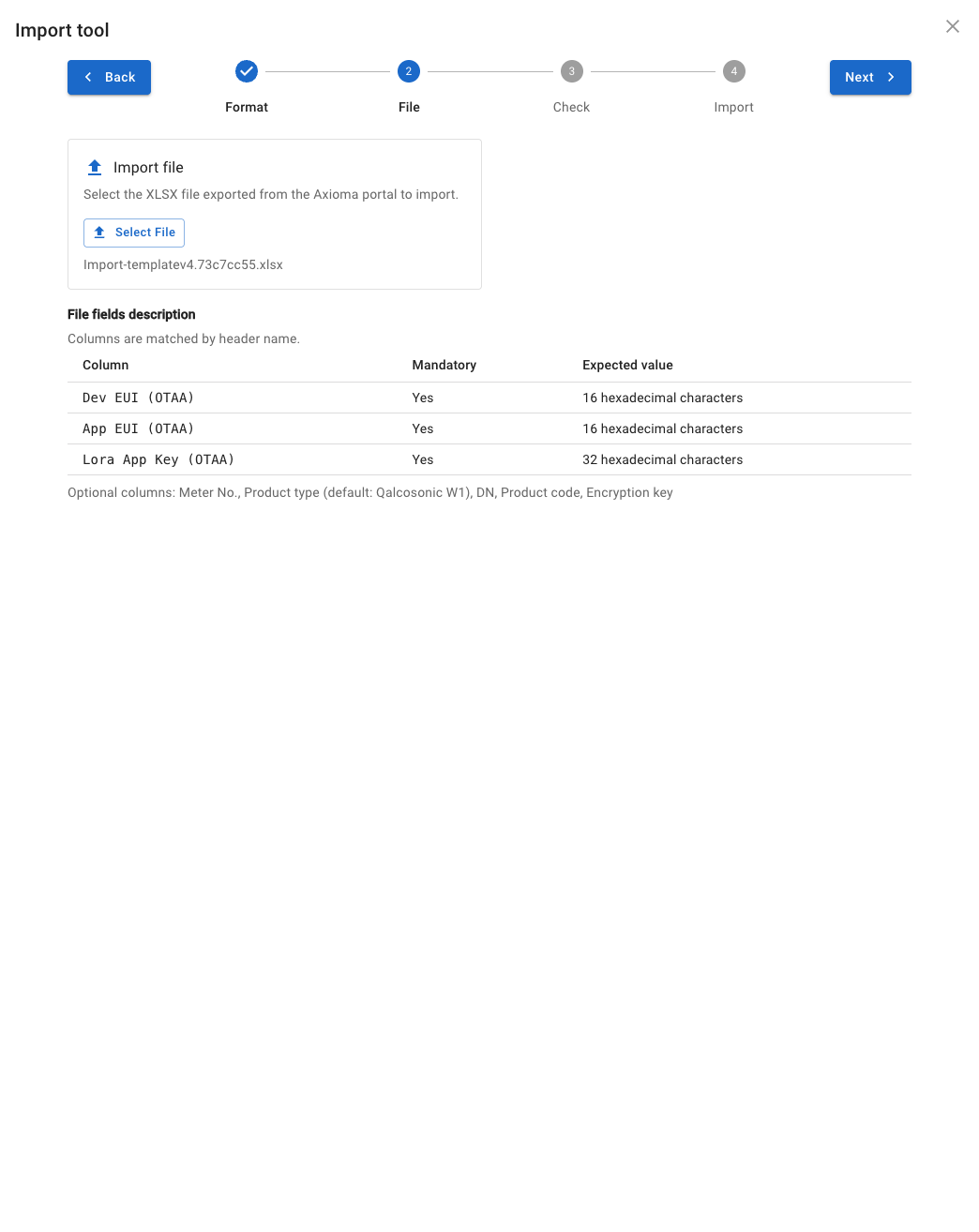
Step 2 / 4
Select the XLSX file exported from the Axioma portal. The field descriptions are shown on screen. Click Next to check the file.
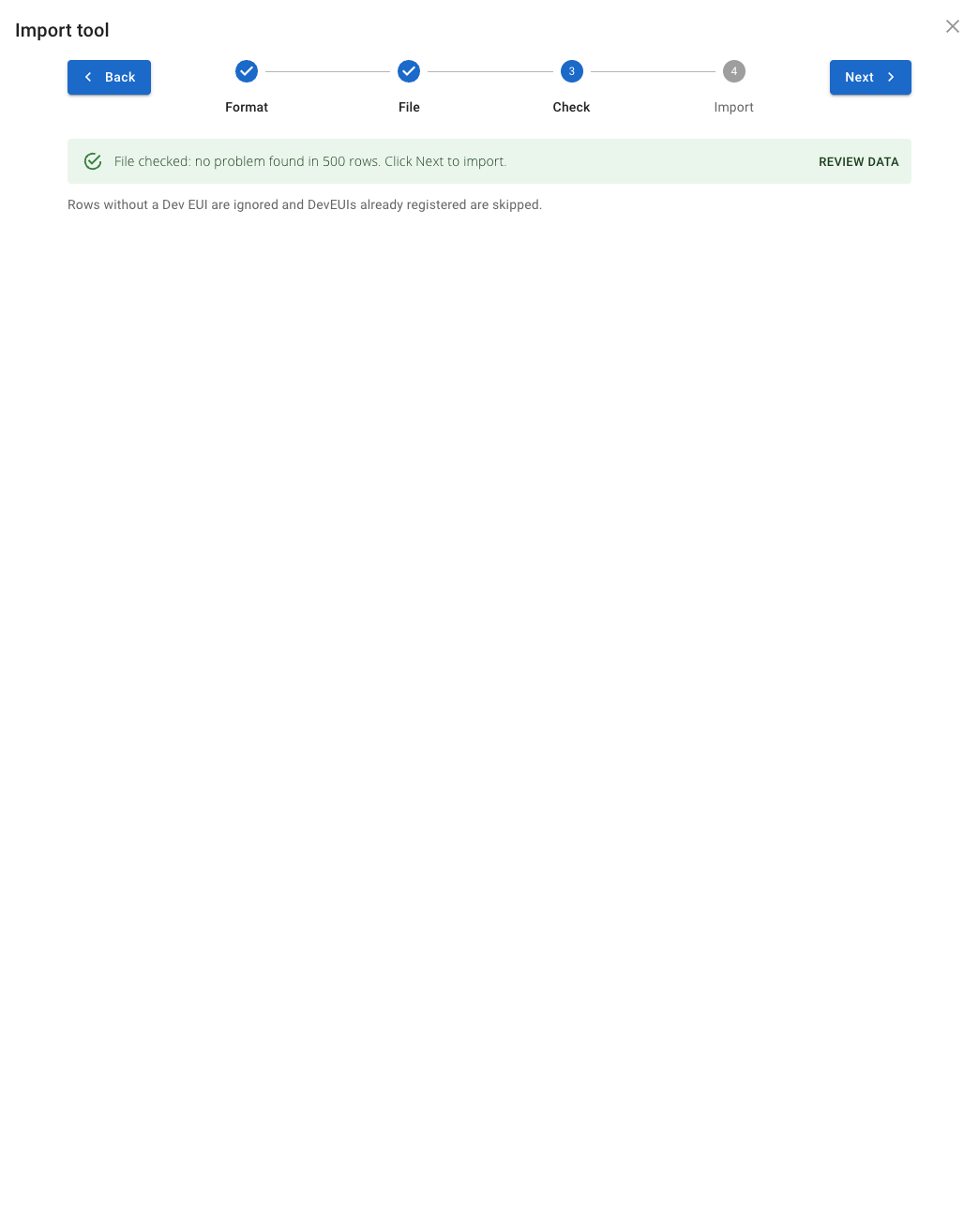
Step 3 / 4
Review the validation result. Use Review data to inspect the imported file before continuing. Rows without a Dev EUI are ignored and already registered DevEUIs are skipped. When the file is ready, click Next.
Step 4 / 4
Confirm the organization displayed above the site selector. Choose the destination site from Select site, then click Import. Wait for the application to report the result and check the meters in the destination site. This screenshot shows the final action before submission, not an import success confirmation.

empowering IoT sensors